Nessuno è mai salito di divisione grazie alla propria “qualità dell’ombra”.
Ma molti giocatori hanno perso uno scontro per il Barone perché un attacco automatico ha colpito un minion incantatore invece di Kai'Sa, che si trovava tre unità dietro di lui!
È proprio questa differenza a rendere fondamentali le impostazioni.
Ecco una breve panoramica delle migliori impostazioni per League of Legends: puoi applicarle tutte in circa quattro minuti:
risoluzione nativa del monitor
Schermo intero
VSync disattivato
Ombre disattivate
Anti-aliasing disattivato
Lancia rapidamente tutto
Mossa d'attacco sul cursore con il giocatore Mossa d'attacco cliccando su A
Telecamera sbloccata con tasto Spazio associato al centraggio
Riduci la scala dell'HUD
Scala della minimappa quasi al massimo
Musica disattivata
Effetti sonori ad alto volume.
Tutto ciò che segue è la spiegazione, così potrai adattare le impostazioni al tuo hardware e al tuo ruolo invece di limitarti a copiare uno screenshot.
Le sei impostazioni che cambiano davvero il gioco
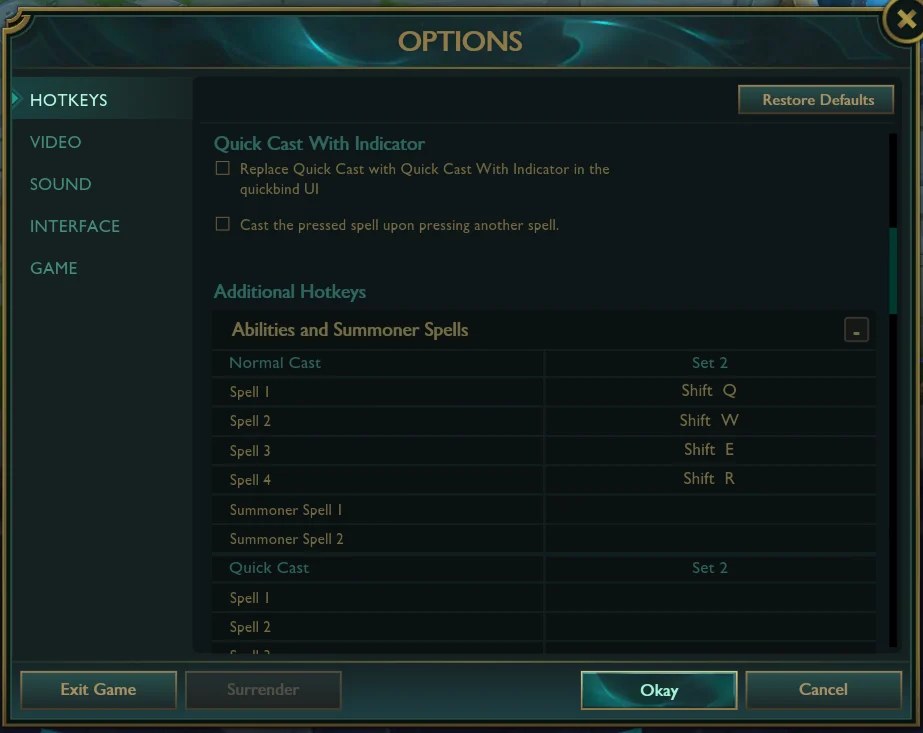
Lanci rapidi per tutte le abilità. Il lancio normale richiede due input per ogni abilità (premere, poi cliccare). Il lancio rapido ne richiede uno solo. In una combo di cinque abilità, ciò significa cinque clic in meno e circa un terzo di secondo risparmiato, che è la differenza tra infliggere uno stordimento e subirne uno.
"Attack Move on Cursor", con "Player Attack Move Click" assegnato al tasto A. Elimina un'intera categoria di errori di clic: l'azione automatica di "camminare verso la squadra nemica" che ti fa uccidere mentre stai kiting.
Telecamera sbloccata con il tasto Spazio assegnato a «Centra telecamera sul campione». Puoi vedere contemporaneamente i gank in arrivo, i roam in partenza e la tua barra della salute.
Scala della minimappa da 80 a 100. La guardi già comunque. Ingrandisci ciò che guardi.
Scala HUD da 20 a 40. Riduce la parte dello schermo che riesci a malapena a leggere e ti restituisce il centro della mappa.
VSync disattivato. Aggiunge un ritardo di input su ogni fotogramma per un effetto di fluidità di cui raramente hai bisogno.
Due di questi sono misurabili. Il “Quick Cast” elimina dimostrabilmente un input per ogni abilità, mentre la “mossa d’attacco” elimina dimostrabilmente una categoria di errori di puntamento che potete contare nei vostri replay. Gli altri quattro riguardano il comfort e le informazioni, che sono comunque importanti, ma non aspettatevi un miglioramento del rank semplicemente regolando il cursore della minimappa.
Le migliori impostazioni grafiche e video per un FPS stabile
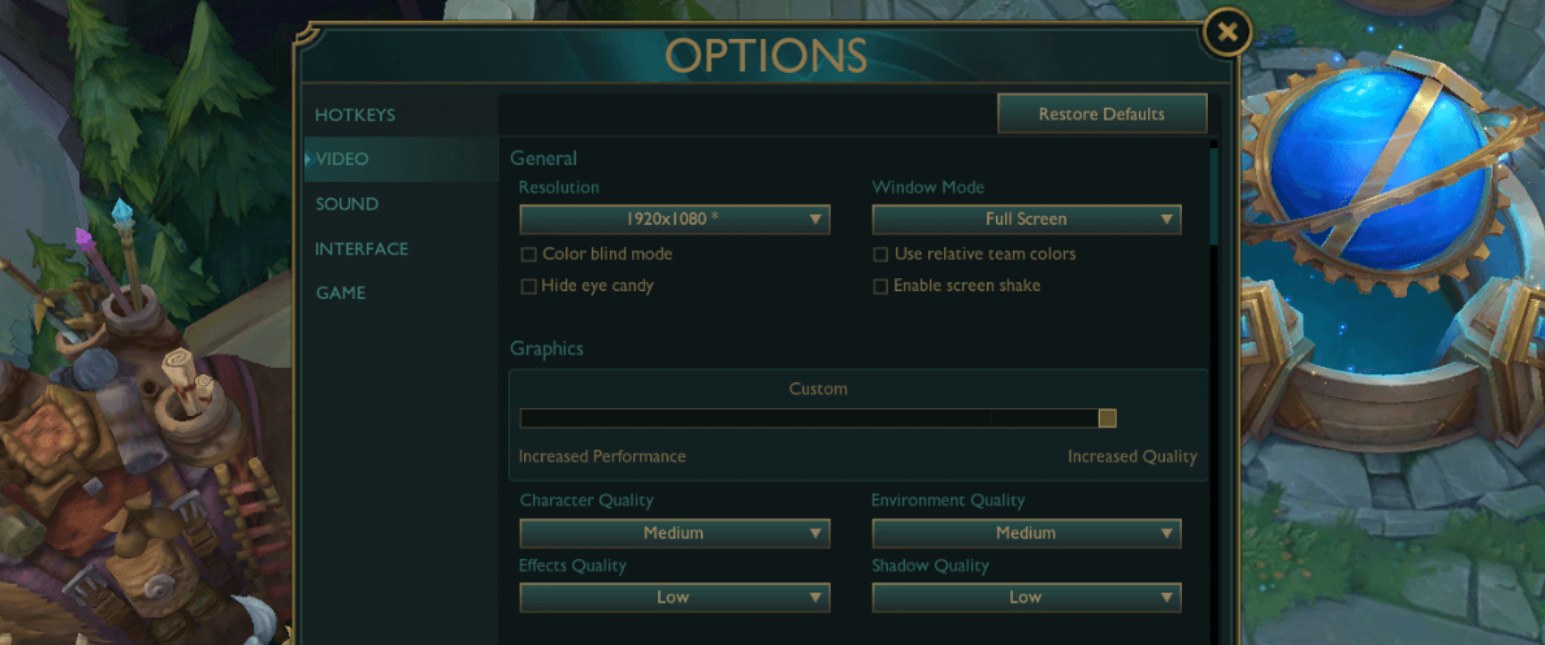
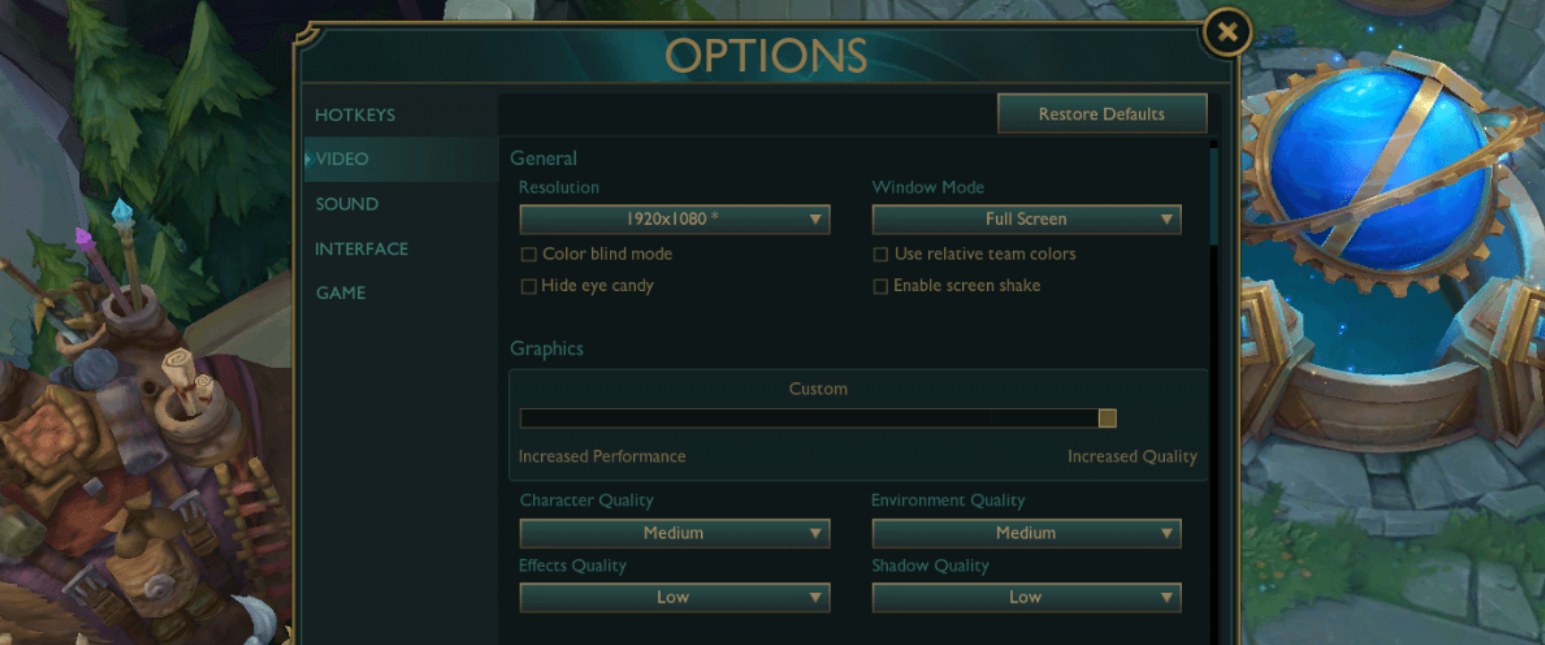
Utilizza la risoluzione nativa del tuo monitor. Sempre. Abbassare la risoluzione per aumentare i fotogrammi rende sfocate le barre della salute dei minion, che sono i pixel più importanti in assoluto nella fase di laning.
La modalità a schermo intero offre il ritardo di input più basso e il frame rate più stabile. La modalità senza bordi vale il piccolo costo se si passa costantemente da Alt+Tab a altre applicazioni, si trasmette in streaming o si utilizza un secondo monitor con una guida aperta. Molti professionisti giocano in modalità senza bordi, quindi questa è davvero una questione di preferenze.
Per il resto del menu video: qualità dei personaggi su "Media", qualità dell’ambiente su "Bassa", qualità degli effetti da "Bassa" a "Media", qualità delle ombre disattivata, contorno dei personaggi disattivato, anti-aliasing disattivato, vibrazione dello schermo disattivata, "Nascondi effetti visivi" attivato. Le ombre e gli effetti sono le due opzioni che consumano fotogrammi proprio nel momento in cui ne hai bisogno, mentre lo "screen shake" è un effetto visivo che nasconde attivamente le informazioni durante le mosse definitive di Malphite. Anche la modalità per daltonici rientra in questo contesto, e non è riservata solo ai giocatori daltonici: ridisegna gli indicatori di danno e degli alleati utilizzando una tavolozza ad alto contrasto che rende le barre della salute più leggibili a colpo d’occhio.
Disattivare VSync è il consiglio predefinito perché il ritardo di input che aggiunge si avverte ad ogni singolo clic. L’unico motivo per riconsiderare questa scelta è un vero e proprio screen tearing che ti dà fastidio, e anche in quel caso, un limite di frame rate impostato appena al di sotto della frequenza di aggiornamento dello schermo di solito risolve il tearing senza il costo in termini di latenza.
Per quanto riguarda il limite stesso: adattalo al tuo monitor. Un 120 FPS stabile è preferibile a un frame rate che oscilla tra 90 e 200, perché la tua memoria muscolare si calibra in base a un timing costante dei fotogrammi, non ai valori di picco. Rimuovere il limite ha senso solo se il PC mantiene costantemente una frequenza ben superiore a quella di aggiornamento e si è disposti a sacrificare gli ultimi millisecondi di ritardo di input. Valutate tutto questo durante uno scontro per il Barone con cinque ultime e un Sion, non stando fermi alla fontana dove tutto gira a 240 FPS. L’attuale ciclo di patch continua ad aggiungere nuovi effetti per campioni e skin, quindi una configurazione che ha funzionato nella scorsa stagione merita di essere testata nuovamente.
Scegli la tua preimpostazione: competitiva, PC di fascia bassa o nitidezza con frequenza di aggiornamento elevata
Impostazioni | Predefinita competitiva | PC di fascia bassa | Nitidezza con frequenza di aggiornamento elevata |
|---|---|---|---|
Modalità finestra | A schermo intero | Schermo intero | Senza bordi |
Risoluzione | 1920x1080 nativa | 1600x900 | 2560x1440 nativa |
Qualità dei caratteri | Media | Molto bassa | Alta |
Qualità dell'ambiente | Bassa | Molto bassa | Media |
Qualità degli effetti | Bassa | Molto bassa | Media |
Qualità delle ombre | Disattivata | Disattivato | Bassa |
Anti-aliasing | Disattivato | Disattivato | Attivo |
Limite della frequenza dei fotogrammi | 144 FPS | 60 FPS | 240 FPS |
Quando il numero di fotogrammi è ancora insufficiente, riduci in questo ordine: prima la qualità degli effetti, poi quella dell'ambiente e infine la risoluzione. La risoluzione è l'elemento da cui si perdono informazioni reali, quindi è l'ultima leva da utilizzare, non la prima. Quando hai margine a disposizione, aumenta prima la qualità dei personaggi, poiché i modelli dei campioni e le loro animazioni sono gli elementi visivi che veicolano i dati effettivi del gameplay.
Impostazioni del client che influenzano gli FPS più dei cursori
Due opzioni nelle impostazioni del client di League sono più efficaci per un PC poco potente di qualsiasi cursore all’interno del gioco: Abilita modalità a basse specifiche e Chiudi client durante la partita. La seconda restituisce al gioco la memoria e la CPU che il launcher stava occupando, e l’unico svantaggio è un ritorno più lento alla schermata post-partita.
Poi occupati del resto del tuo computer. Chiudi Chrome, Spotify e qualsiasi overlay che non stai utilizzando attivamente prima di metterti in coda, poiché un browser con trenta schede è una fonte di cali di FPS maggiore rispetto alla qualità degli effetti. Attiva la Modalità Gioco di Windows, imposta il piano di alimentazione su “Prestazioni elevate” e, su un portatile, forza League a utilizzare la GPU dedicata nelle impostazioni grafiche. Il fatto che i portatili indirizzino i giochi al chip integrato è la causa più comune per cui un computer decente gira League a 45 FPS.
Migliori impostazioni dei tasti di scelta rapida: lancio rapido, mossa d’attacco e solo campioni bersaglio
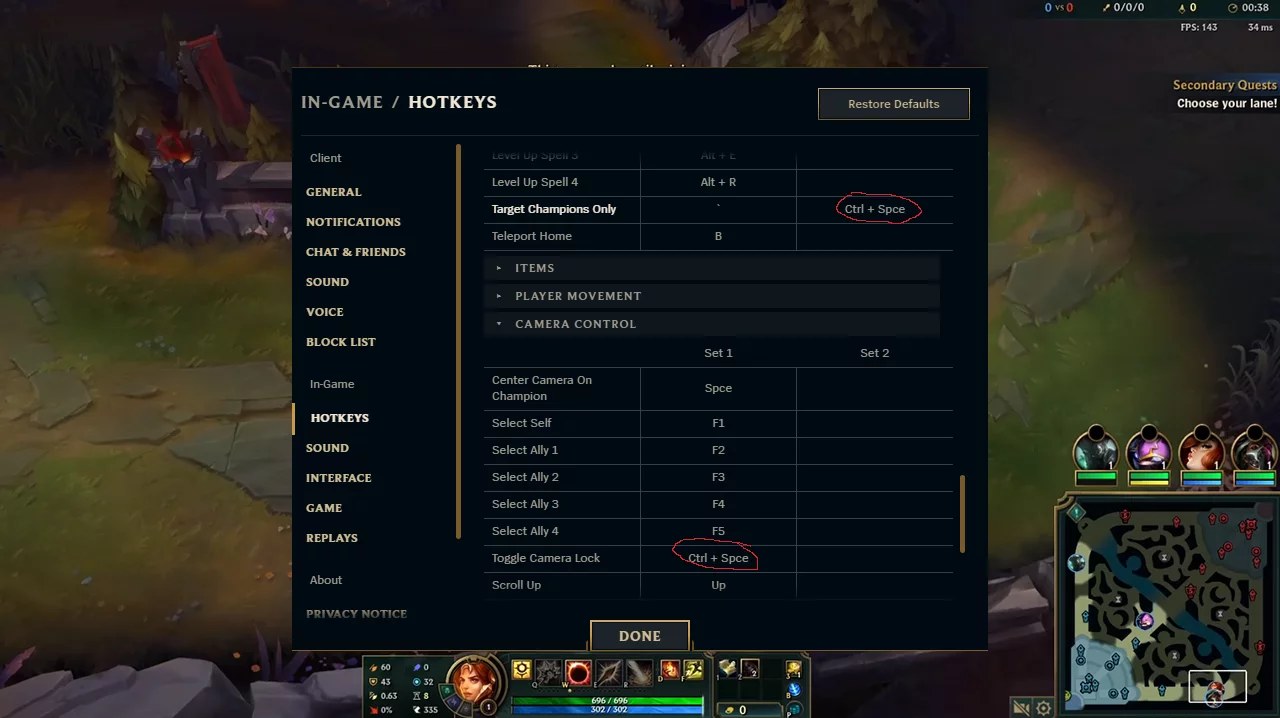
Questa è la categoria con il potenziale più elevato, e la maggior parte dei giocatori non la utilizza mai.
Imposta “Lanci rapidi tutti” nelle impostazioni dei tasti di scelta rapida. Quindi usa l’interfaccia di Quickbind per associare “Lanci rapidi con indicatore” a Shift + Q/W/E/R. Tieni premuto il tasto per vedere la portata dell’abilità, rilascia il tasto per lanciarla, e mantieni la velocità dei lanci rapidi con la sicurezza di un controllo della portata per abilità a bersaglio preciso come la freccia di Ashe o l’ultima di Jhin. L’auto-lancio rimane su Alt + Q/W/E/R per scudi e cure su te stesso, e dovresti far salire di livello le abilità con Ctrl + Q/W/E/R piuttosto che cliccando sui pulsanti con il segno più.
Gli oggetti vanno assegnati ai tasti 1, 2, 3 più eventuali pulsanti del mouse liberi, mentre il ciondolo merita di essere riassegnato dal tasto 4 a un punto effettivamente raggiungibile dalla mano, perché una sentinella che non hai piazzato perché il tasto era scomodo è una sentinella che non è mai esistita.
Per l’attacco in movimento, assegna “Attacco in movimento del giocatore al clic” al tasto A (o Maiusc + clic destro se hai già acquisito la memoria muscolare per quella combinazione) e attiva l’opzione “Attacco in movimento sul cursore”. Questa combinazione fa sì che l’attacco colpisca qualsiasi cosa si trovi più vicina al cursore invece di costringerti a cliccare su un’unità, il che costituisce l’intera base meccanica del kiting.
"Solo campioni bersaglio" va assegnato a ~ o a un pulsante del mouse, e puoi impostarlo su "Trattalo come interruttore" se preferisci premere una volta piuttosto che tenere premuto. Una limitazione che nessuno menziona: "Solo campioni bersaglio" regola i clic diretti, non "Attacco in movimento". Tenere premuto il tasto non farà sì che il clic con il tasto A ignori l’ondata di minion. A partire dalla patch 26.8 è anche possibile impostare tasti di scelta rapida specifici per i campioni, il che rappresenta un vero e proprio miglioramento per Lee Sin, Jayce, Elise e chiunque altro il cui kit cambi forma nel corso del combattimento, anche se è necessario configurarli nello Strumento di Allenamento anziché fuori dal gioco.
Migliori impostazioni di telecamera e mouse
La telecamera sbloccata è l’impostazione predefinita corretta, e di gran lunga la migliore. La telecamera bloccata nasconde proprio quelle informazioni che determinano l’esito degli scontri di squadra. Se la modalità sbloccata ti sembra impossibile da gestire, usa le modalità di blocco della telecamera come punti di passaggio: semi-bloccata, poi offset fisso, poi offset per lato, infine sblocco completo. Assegna il tasto Spazio a “Centra telecamera sul campione” e tienilo premuto durante i combattimenti.
La velocità di movimento della telecamera si aggira tra 40 e 60 per la maggior parte dei giocatori. Regolala con incrementi di cinque, non di venti, e adattala alla velocità del mouse in-game in modo che la panoramica e la mira sembrino gestite dalla stessa mano. Assegna i tasti da F2 a F5 alle telecamere degli alleati, che sono molto più importanti per i jungler e i support rispetto a chiunque altro. Se emetti regolarmente comandi di movimento accidentali cliccando sulla mappa, disattiva l’opzione “Consenti movimento sulla minimappa”.
Per quanto riguarda il mouse: da 800 a 1600 DPI, velocità del mouse in-game intorno a 50, frequenza di campionamento di 1000 Hz e opzione "Migliora la precisione del puntatore" di Windows disattivata, in modo che movimenti identici della mano producano sempre movimenti identici del cursore. Lascia attiva l’opzione "Usa previsione del movimento". La sensibilità del mouse è l’impostazione più soggettiva del gioco, quindi scegli un valore e poi lascialo così com’è per un mese.
Migliori impostazioni dell’interfaccia e dell’HUD
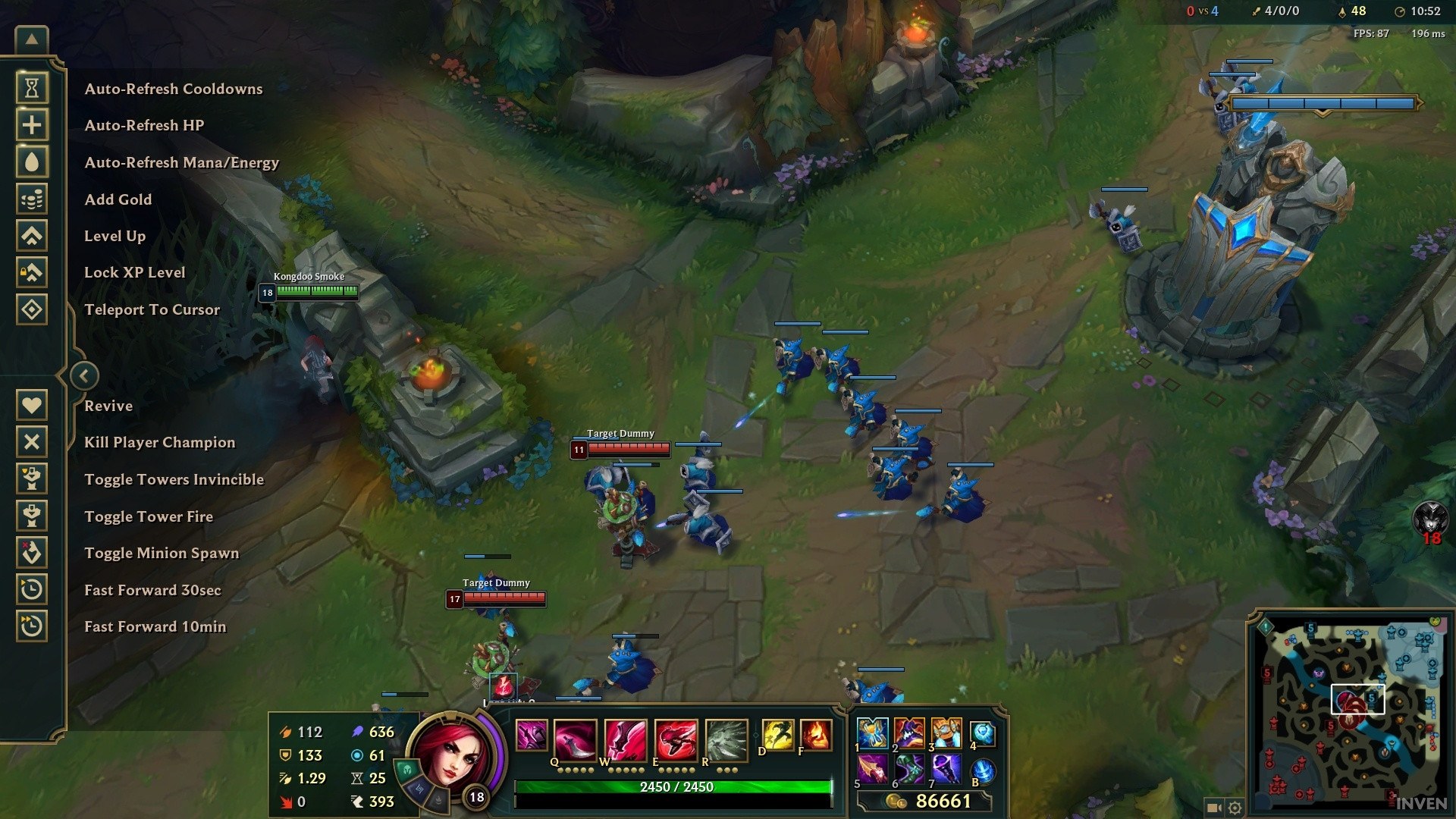
Riduci ciò che non leggi mai, ingrandisci ciò che leggi. Scala HUD da 20 a 40, scala minimappa da 80 a 100, riduci la scala della chat, scala del cursore da 40 a 70 (abbastanza grande da essere individuato, abbastanza piccolo da non coprire la barra della salute di un minion).
Poi attiva tutte le opzioni che ti forniscono informazioni gratuite: mostra i costi degli incantesimi, i tempi di ricarica numerici, i timestamp nella chat, i nomi dei campioni sopra le barre della salute, mostra la portata d’attacco, abilita la visualizzazione dei missili in linea e i timer dei campi neutrali, così saprai quando Gromp è tornato senza doverlo chiedere. Vale la pena tenere attiva l’interfaccia utente per la perdita di controllo, perché sapere esattamente quanto dura il tuo stordimento ti aiuta a decidere se usare Flash per uscirne.
Migliori impostazioni audio
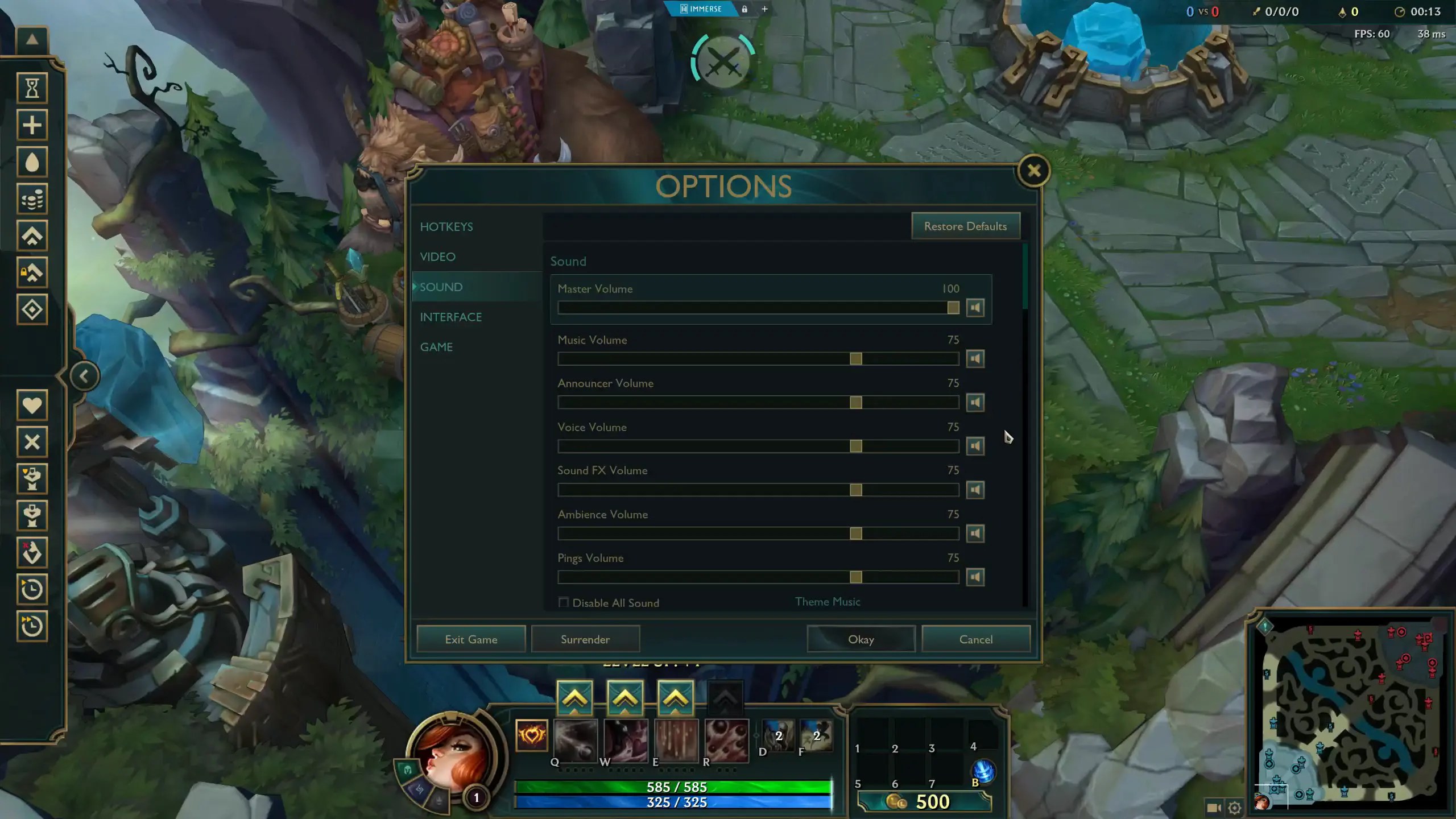
Musica da 0 a 10, effetti sonori da 80 a 100, ping ad alto volume, commentatore udibile, suoni ambientali e voci dei campioni a basso volume. Ognuna di queste impostazioni è una scelta dettata dall’informazione piuttosto che dal gusto personale. Gli effetti sonori segnalano l’uso di Flash, il richiamo e il posizionamento delle sentinelle. I ping rappresentano l’unico mezzo di comunicazione con i compagni di squadra più veloce della digitazione. Il commentatore ti avvisa di un’ultimate globale o della comparsa di un drago mentre la tua telecamera è completamente altrove. La musica non trasmette alcuna informazione.
Impostazioni che variano a seconda del ruolo
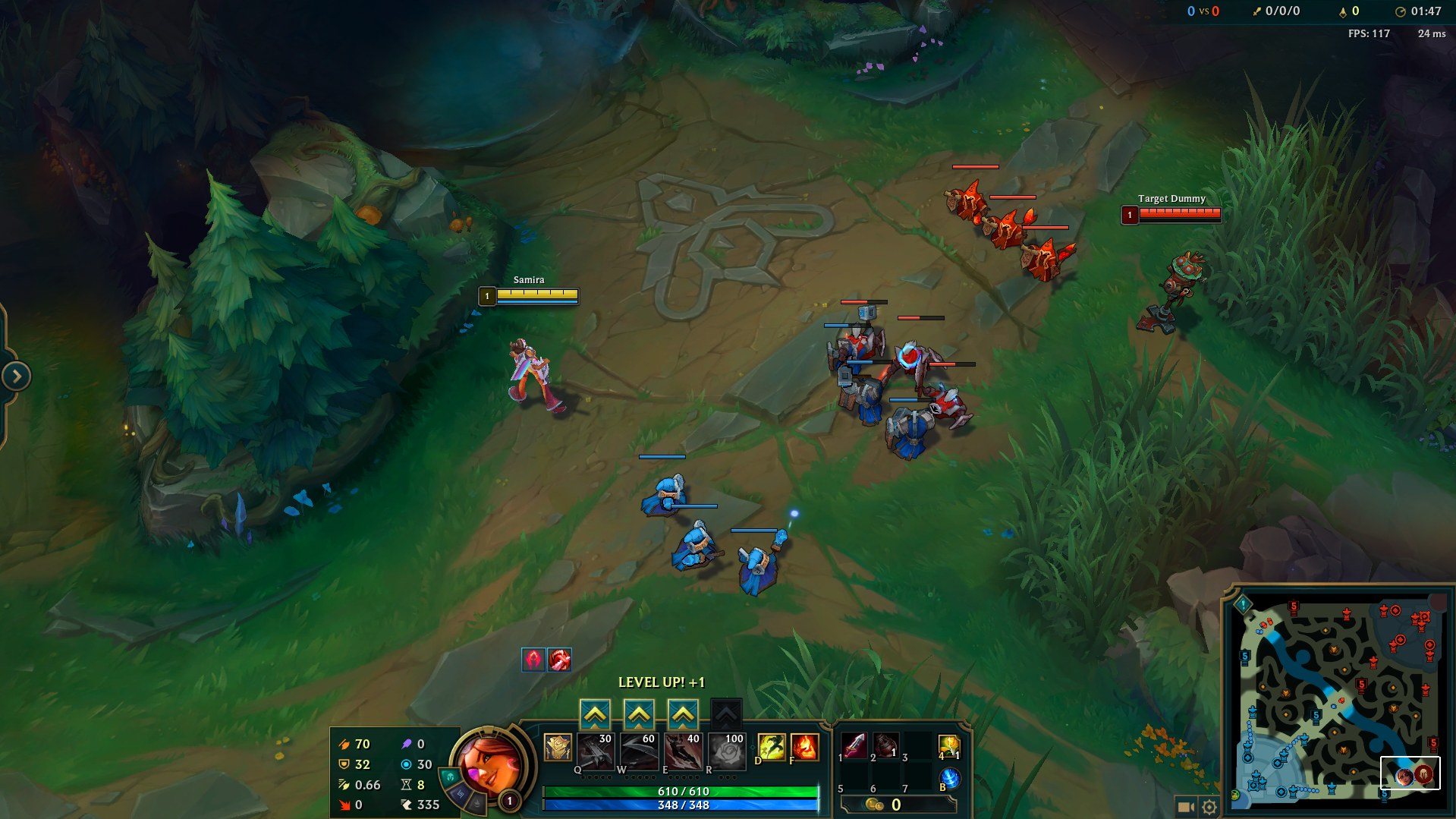
La maggior parte delle guide si ferma alle impostazioni predefinite universali. Il tuo ruolo dovrebbe modificare diversi di questi valori.
ADC: il tasto assegnato all’attacco deve essere raggiungibile durante il kiting, il che di solito significa il tasto A piuttosto che Shift + clic destro. Attiva “Mostra raggio d’attacco”, imposta “Solo campioni bersaglio” su un tasto del pollice e una velocità di movimento della telecamera leggermente inferiore, poiché il tuo lavoro si svolge in un’area ristretta durante i combattimenti di squadra. Se il tuo kiting continua a crollare sotto pressione, si tratta di un problema di meccanica che vale la pena affrontare con un coach specializzato in ADC, piuttosto che di un problema di impostazioni.
Jungler: velocità di movimento della telecamera più elevata (da 55 a 65), timer dei campi attivi, la minimappa più grande che riesci a tollerare e un uso rigoroso dei tasti da F1 a F5, in modo da poter controllare lo stato delle ondate di una corsia senza spostare la telecamera dalla tua area di pulizia. Le decisioni relative al percorso e al ritmo sono ciò che distingue realmente i jungler, ed è per questo che l’allenamento in giungla dedica più tempo al percorso che ai tasti di scelta rapida.
Supporto: tasti di scelta rapida per trinket e ward fuori dalla fila dei numeri, rotella dei ping su un pulsante del mouse, tasto di scelta rapida per lanciare scudi su te stesso a metà rotazione.
Mid e top: qui è fondamentale "Lanci rapidi con indicatore" su Shift, poiché sono le abilità a lungo raggio a decidere il risultato della tua corsia. L’offset della telecamera per lato ti aiuta a vedere meglio la corsia in cui stai spingendo.
Su cosa concordano effettivamente le impostazioni dei professionisti
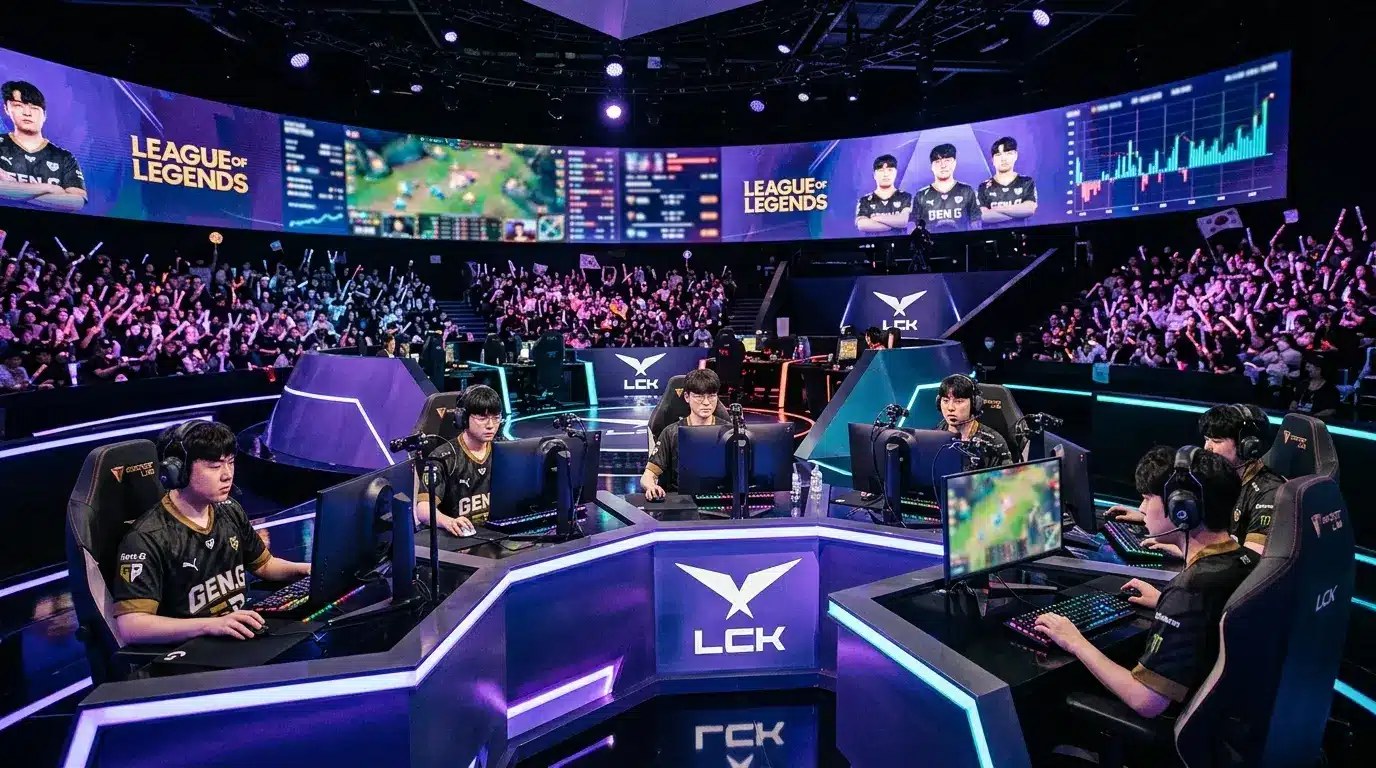
Il consenso è più ristretto di quanto suggeriscano i dati sulle impostazioni. Quasi tutti i professionisti utilizzano “Lancio rapido di tutte le abilità”, movimento d’attacco sul cursore, telecamera sbloccata, HUD ridotto, minimappa grande e frame stabili. Tra i 167 giocatori professionisti monitorati da ProSettings, la mediana è di 50 di sensibilità del mouse, 50 di sensibilità della telecamera e 1600 DPI; circa l’87% utilizza lo stesso valore per la sensibilità del mouse e della telecamera, mentre il 95% gioca a 1920x1080.
Ora il punto di disaccordo. I tracker indicano che Faker utilizza una risoluzione 1080p senza bordi con qualità dei personaggi su “Alta”, ombre su “Bassa”, anti-aliasing disattivato e un limite di 240 FPS, a 1800 DPI con velocità del mouse pari a 80. Caps utilizza una configurazione grafica simile con l’anti-aliasing attivato, a 3200 DPI con una velocità del mouse di 50. I loro valori DPI grezzi differiscono del 78%, eppure la loro sensibilità effettiva si attesta su valori simili: questo è esattamente il motivo per cui copiare il DPI di un giocatore non ha senso senza conoscere la sua velocità di gioco. Copia la logica alla base, mai lo screenshot.
Come modificare le impostazioni senza compromettere la percentuale di vittorie
Modifica una categoria alla volta. Oggi i video, la prossima volta i tasti di scelta rapida. Cambiare sei cose contemporaneamente significa non capire quale di esse abbia aiutato.
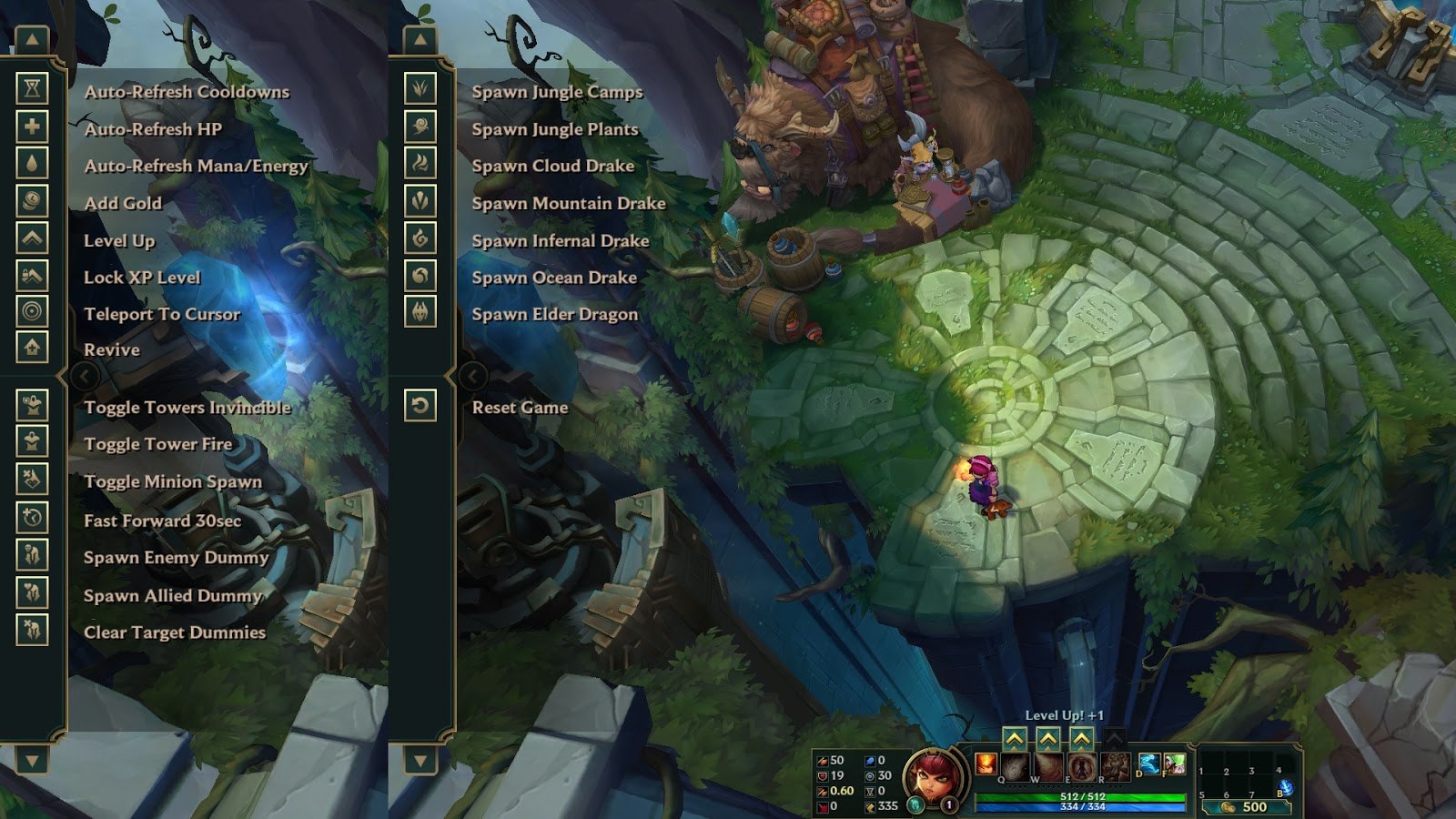
Prova prima nello Strumento di Allenamento, poi nelle partite normali e infine in quelle classificate. Concedi a ogni nuova assegnazione di tasti almeno dieci partite prima di giudicarla, e a un cambio da telecamera bloccata a sbloccata circa venti, perché all’inizio sembra peggiorare prima di migliorare. Segui una regola di ripristino: se una modifica continua a costarti input dopo quel periodo, riportala com'era e smetti di fingere.
Poi smetti di tirare a indovinare e analizza i tuoi replay. Presta attenzione a tre cose: le morti in cui la telecamera era fissa su un’altra corsia, gli attacchi automatici lanciati contro i minion durante uno scontro e le combo che sono andate a segno con un battito di ritardo perché stavi ancora utilizzando il lancio normale. Ognuna di queste indica un'impostazione specifica. È esattamente così che un allenatore inizia l’analisi di un VOD, e se preferisci che sia qualcun altro a individuare lo schema, fai analizzare i tuoi VOD da un allenatore di livello Challenger che classificherà le correzioni per te.
Vale la pena chiarire bene questo limite: nessuna configurazione può risolvere i tuoi problemi di ping, il tuo processo decisionale o la tua gestione delle ondate. Le impostazioni ti restituiscono input e informazioni. Quello che ne fai è il vero gioco.
Domande frequenti
Dove sono memorizzati i file di configurazione di League of Legends e come posso ripristinare le impostazioni senza perdere le mie combinazioni di tasti?
Su Windows si trovano in C:\Riot Games\League of Legends\Config, come file game.cfg e PersistedSettings.json. Gli utenti Mac li trovano in /Applicazioni/League of Legends.app/Contents/LoL/Config (tramite “Mostra contenuto pacchetto”). Copia quella cartella per eseguire un backup della configurazione o per trasferirla su un altro PC. Per ripristinare le impostazioni in modo sicuro, utilizza il pulsante "Ripristina impostazioni predefinite" all’interno di ciascuna scheda delle impostazioni, anziché eliminare la cartella, in modo da poter azzerare le impostazioni grafiche senza modificare le scorciatoie da tastiera.
Quali impostazioni del pannello di controllo NVIDIA o AMD sono effettivamente utili per League of Legends?
Imposta la «Modalità a bassa latenza» su «Ultra» in «Gestisci impostazioni 3D» di NVIDIA, la gestione dell’alimentazione su «Preferisci prestazioni massime» e la qualità del filtraggio delle texture su «Prestazioni elevate». Gli utenti AMD ottengono lo stesso risultato con la funzione «Anti-Lag», disattivando Radeon Chill. Se utilizzi G-Sync o FreeSync, limita il numero di fotogrammi da tre a cinque al di sotto della frequenza di aggiornamento: gli studi sulla latenza condotti da NVIDIA dimostrano che mantenere i fotogrammi all’interno dell’intervallo di sincronizzazione evita la coda che aggiunge un ritardo di input.
Devo disattivare l’Auto Attack in League of Legends?
Sì, e la maggior parte dei giocatori con Elo elevato lo fa. Con l’attacco automatico attivato, il tuo campione attacca qualsiasi cosa si avvicini a te mentre sei inattivo, il che fa avanzare le ondate che volevi bloccare e ti ruba gli ultimi colpi che stavi cercando di sferrare al momento giusto. Disattivandolo avrai il pieno controllo su ogni attacco. Se preferisci lasciarlo attivo, tenendo premuto il tasto di posizione (di default J) lo disattiverai temporaneamente mentre farai farm.
Il movimento con WASD è migliore del «clicca per muoverti» ora che è disponibile nelle partite classificate?
Non ancora, per la maggior parte dei giocatori. Il sistema WASD è stato introdotto nelle partite classificate e in Clash con la patch 26.9 dopo mesi di test, e i dati di Riot indicavano che il "punta e clicca" manteneva ancora un leggero vantaggio in termini di percentuale di vittorie, con un divario abbastanza ridotto da giustificarne l’introduzione. Si tratta di un’opzione di preferenza, non di un miglioramento. Se ti muovi già bene con il mouse, dedica quel tempo all’apprendimento del lancio rapido.
Stasera modifica tre impostazioni, non trenta: "Lanci rapidi per tutti", "Attacco quando il cursore è sul bersaglio" e una minimappa più grande. Poi gioca dieci partite e verifica quante delle tue morti sono state causate da cose che semplicemente non riuscivi a vedere.